How to Deposit in Tron
Adding Tron to your account
Written By _flush_f0x_
Last updated About 1 hour ago
Depositing Tron into your Flush.io account takes just a couple of steps: open the Cashier, choose Tron, then send to the address shown. This guide walks through all of it.
Step 1: Open the deposit screen
From the header, select the red wallet button to open the Cashier. The Deposit tab is shown first.
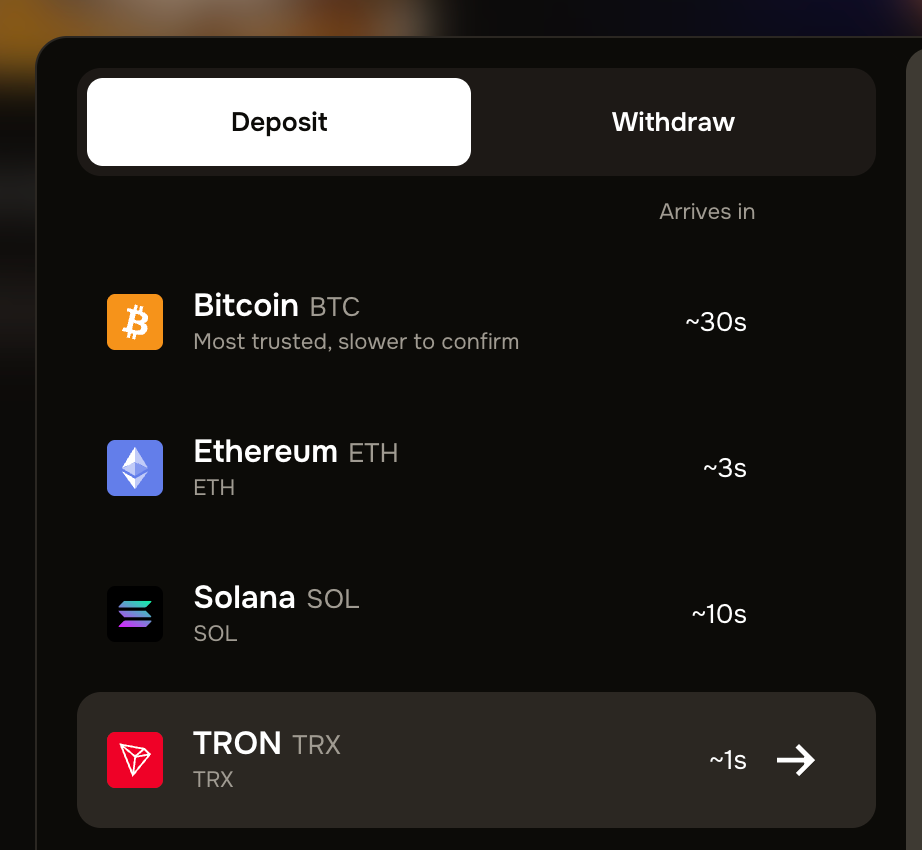
Figure 1: the Cashier, Deposit tab, with Tron selected
1. Select the red wallet button in the header to open the Cashier.
2. On the Deposit tab, choose TRON (TRX) from the list on the left. Its deposit address and QR code appear on the right.
Step 2: One network, nothing to choose
Tron uses a single network, so there is no network to pick: the address shown is a Tron Network address, and it is the only one for this coin. Just make sure your sending wallet is sending Tron on the Tron network, which is its standard network.
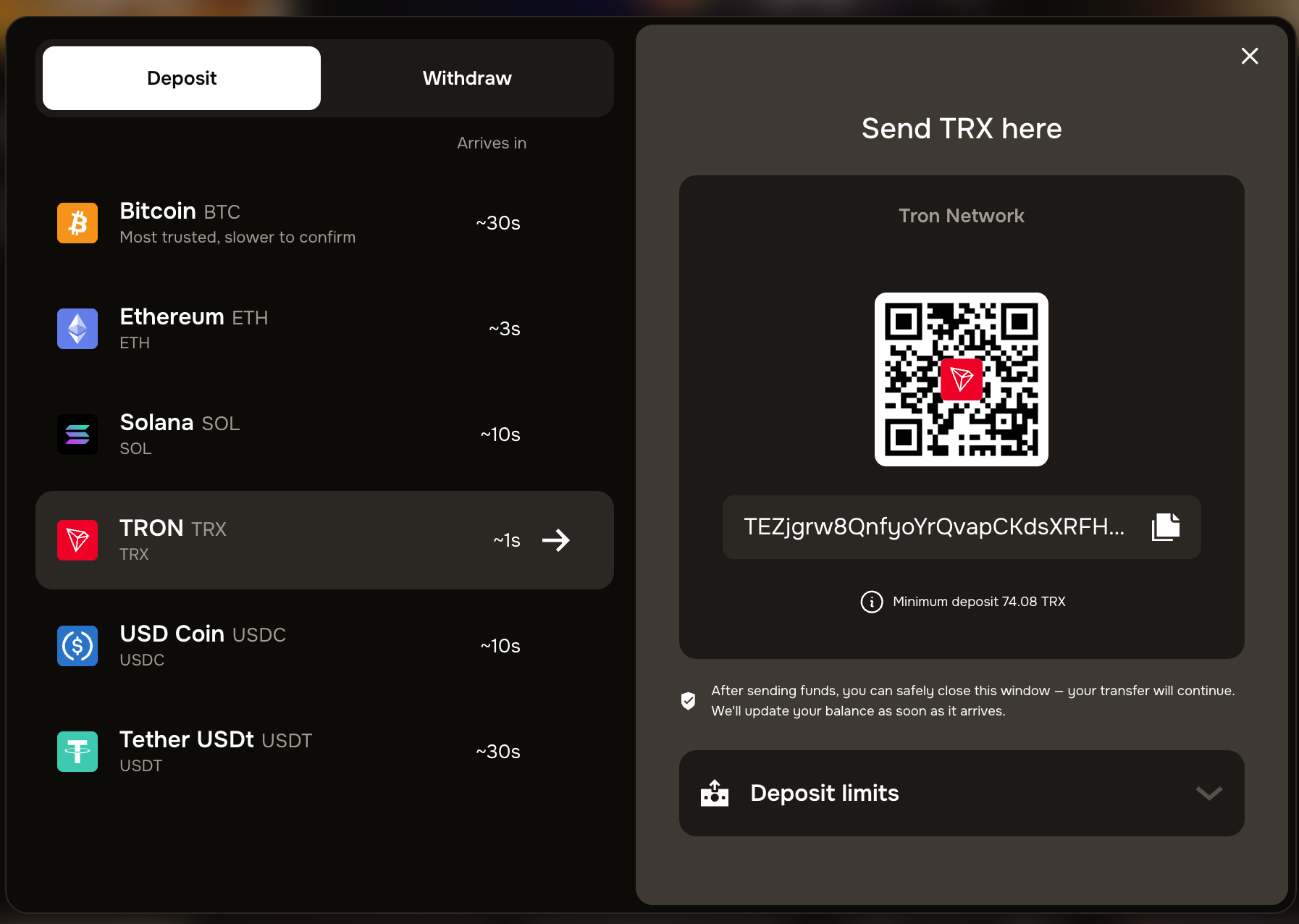
Figure 2: the Tron deposit shows a single Tron Network address
Send only Tron to this address
his address accepts Tron on the Tron network only. Do not send a different coin to it. Because there is no network choice for Tron, the main thing to get right is simply sending the correct coin.
Step 3: Send to your deposit address
1. Copy the deposit address shown, or scan its QR code with your wallet app. Never type an address by hand.
2. In your wallet, paste the address, check you are sending Tron, enter the amount and send.
3. Note the minimum deposit shown on the screen. Sending less than the minimum may mean it does not credit.
4. Wait for the network to confirm. The screen shows an estimated arrival time next to the coin, and your balance updates automatically once it arrives. You can safely close the Cashier in the meantime.
Good to know
A fresh address is normal. Deposit addresses can change between visits; always use the one shown on screen right now.
Each address is coin specific. This address only accepts Tron. Sending any other coin to it risks losing it.
You can close the window. After sending, you can safely close the Cashier; your transfer continues and your balance updates when it arrives.
Mind the minimum and any limits. The deposit screen shows the minimum deposit, and a Deposit limits section with any limits that apply.
Unsure about anything? If a network looks unfamiliar, our support team is happy to confirm it before you send. Checking first beats troubleshooting later.
Was this helpful?
Still need help? Ask the team