How Do I Change My Currency?
Choosing which currency your balance shows in
Written By _flush_f0x_
Last updated About 2 hours ago
You can choose which currency your balance is displayed in from the balance menu in the header. It is quick, and it only changes how your balance is shown: it does not convert or move any funds.
Changing your display currency
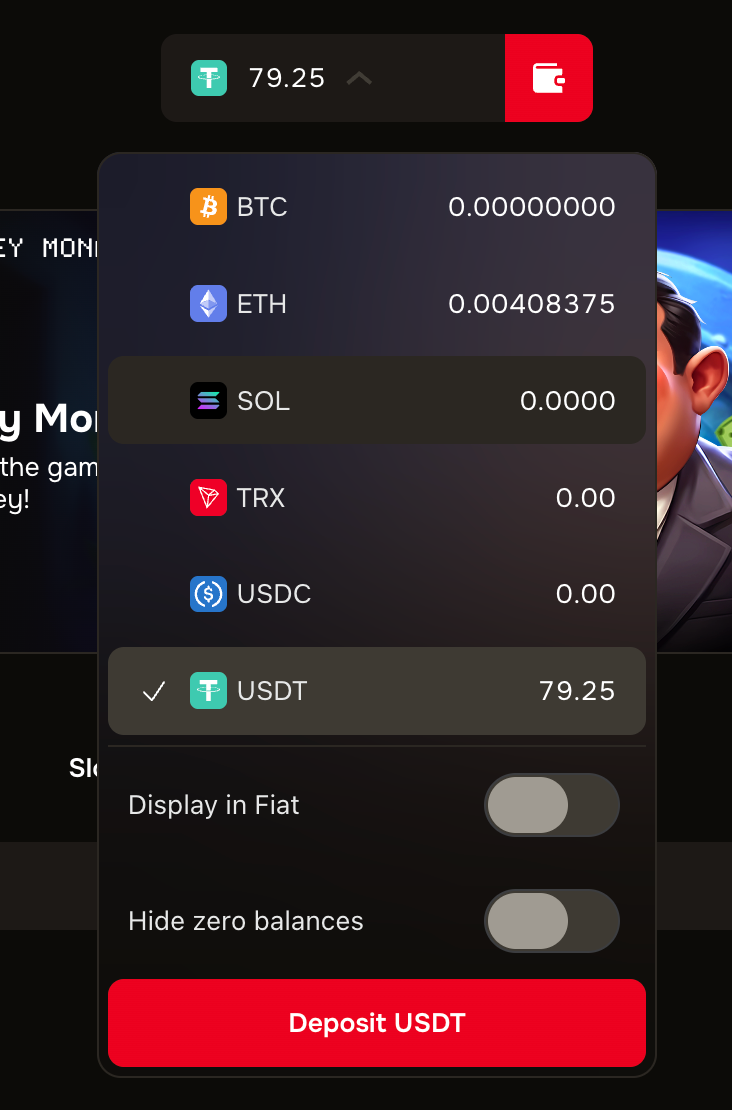
Figure 1: the currency list in the balance menu
1. In the header, select your balance to open the balance menu.
2. The menu lists each coin, BTC, ETH, SOL, TRX, USDC and USDT. A tick marks your current display currency.
3. Select the coin you want your balance to display in. The header updates right away.
This changes the display, not your funds
Selecting a different currency simply changes which coin your balance is shown in. Your actual funds stay exactly as they are; nothing is converted or transferred.
Good to know
It is purely a view setting. Switching currency never moves or converts money, so you can change it as often as you like.
Want a fiat estimate instead? The same menu has a Display in Fiat toggle; our separate guide covers it.
Deposits are unaffected. Funds always arrive as the coin you actually sent, whatever your display currency is set to.
The Deposit button follows your selection. The menu’s deposit button is for whichever coin you currently have selected.
Was this helpful?
Still need help? Ask the team