Clearing Cookies & Cache - Edge on Desktop
Troubleshooting on Microsoft Edge by clearing cache and cookies whilst on a desktop device
Written By _flush_f0x_
Last updated 14 days ago
If pages are loading incorrectly, you’re stuck on an old version of the site, or you’re having trouble logging in or claiming a bonus, clearing Edge’s cache and cookies usually fixes it. The steps below are identical on Windows and Mac, only the keyboard shortcuts differ.
Before you start
Clearing cookies signs you out of every website in Edge, including your Flush.io account. Make sure you know your login details (and have access to your 2FA method) before you clear anything. Passwords saved in Edge are not affected, as long as you leave the Passwords box unticked.
Delete cookies and cached files
1. Open Edge, then click the menu button (…) in the top-right corner of the toolbar.
2. Choose Settings from the menu.
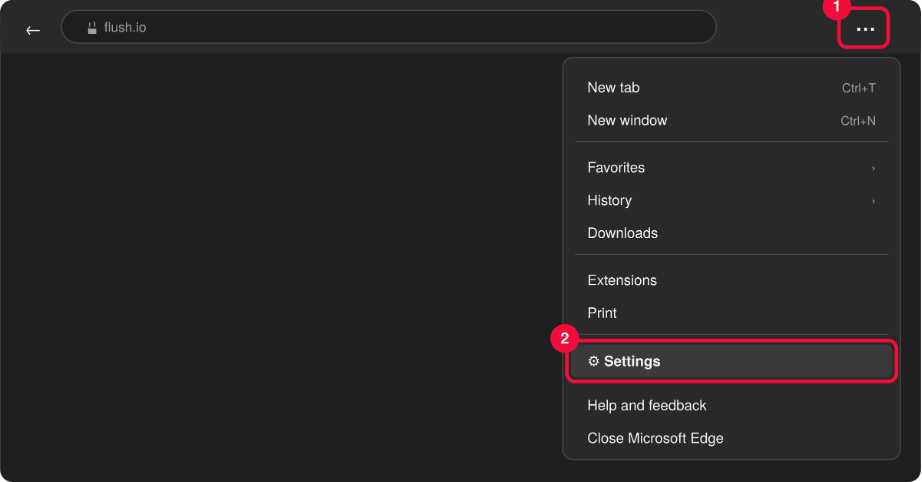
Figure 1 — Menu (…) › Settings
3. In the left sidebar, select Privacy, search, and services.
4. Scroll down to the Delete browsing data section and click Choose what to clear.
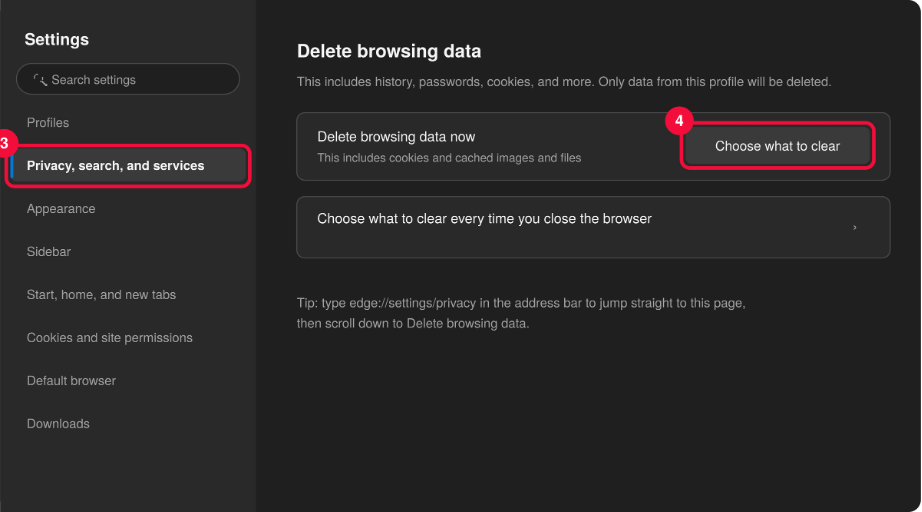
Figure 2 — Privacy, search, and services › Delete browsing data › Choose what to clear
5. In the Time range dropdown, choose All time for a complete reset.
6. Tick Cookies and other site data and Cached images and files. Leave everything else, especially Passwords unticked.
7. Click Clear now. You’re finished, reload the page you were having trouble with.
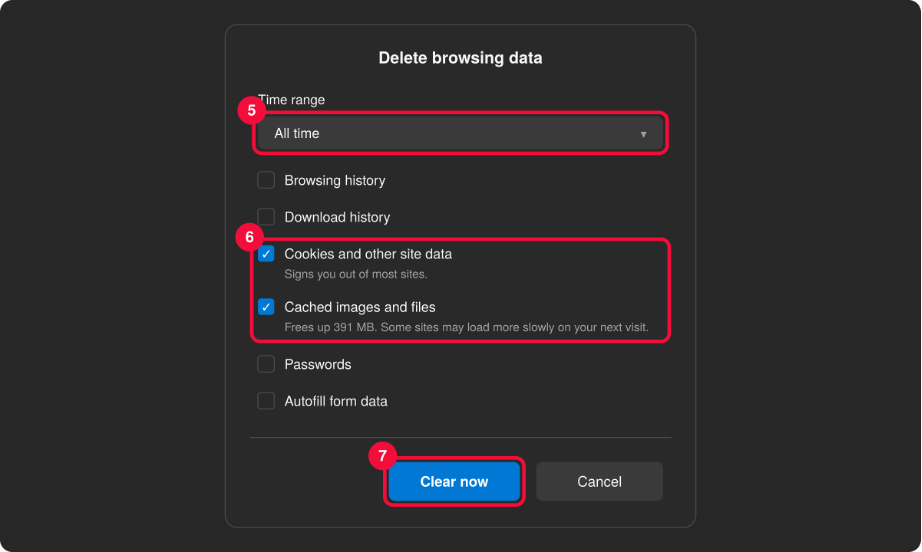
Figure 3 — Time range: All time › tick cookies + cache › Clear now
Keyboard shortcut
Ctrl + Shift + Delete (Windows) or ⌘ + Shift + Delete (Mac) opens the same delete-browsing-data dialog directly from any page, no need to go through Settings. You can also type edge://settings/privacy in the address bar to jump straight to the Privacy page. If you’re signed into Edge with a Microsoft account and sync is on, clearing may apply across your synced devices, Edge tells you in the dialog if so.
After clearing
Close and reopen Edge, then go back to the site. You’ll need to sign in again, cookies store your login session, so being logged out everywhere is expected. If the original problem persists after clearing, try an InPrivate window to rule out extensions, check for an Edge update, or contact support with a description of what you’re seeing.
Was this helpful?
Still need help? Ask the team