Changing Your Password
Updating your password from Settings
Written By _flush_f0x_
Last updated About 2 hours ago
You can change your password any time from the Security tab in Settings. It is good practice to use a strong, unique password and to update it if you ever think it may have been exposed.
Step 1: Open the change password dialog
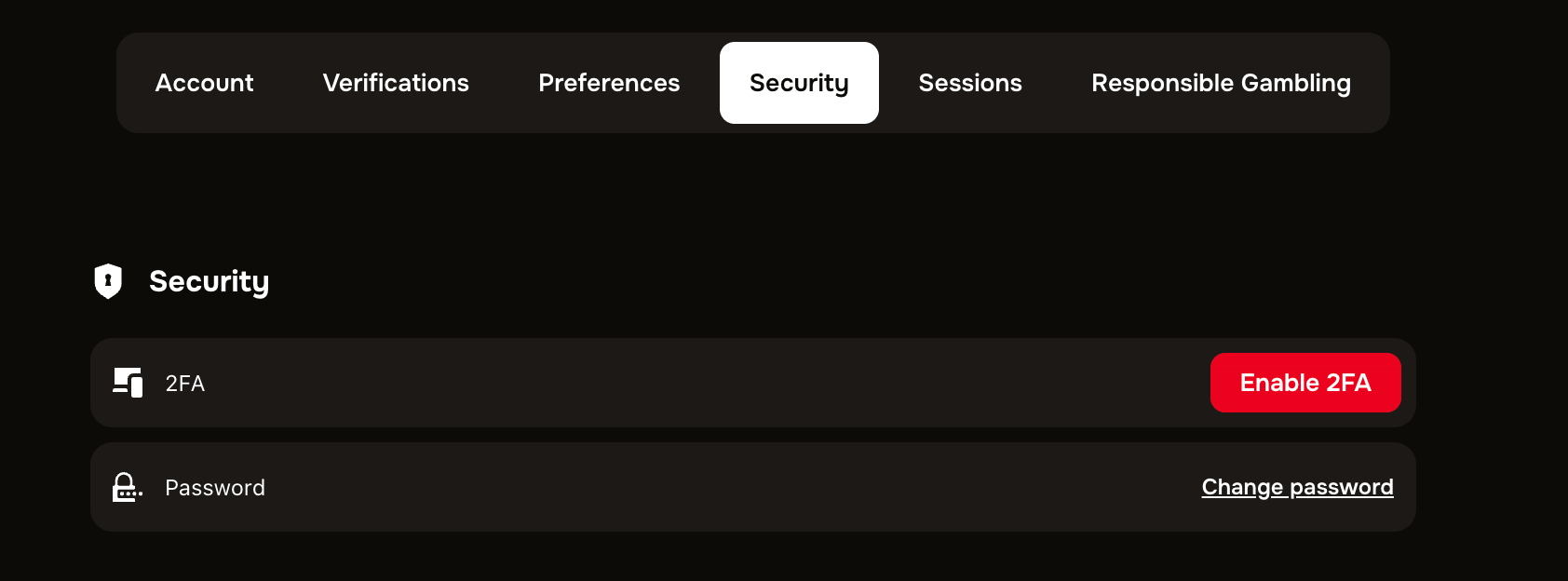
Figure 1: the Security tab, with the Change password option
1. Open your account menu, choose Settings, then the Security tab.
2. Next to Password, select Change password.
Step 2: Set your new password
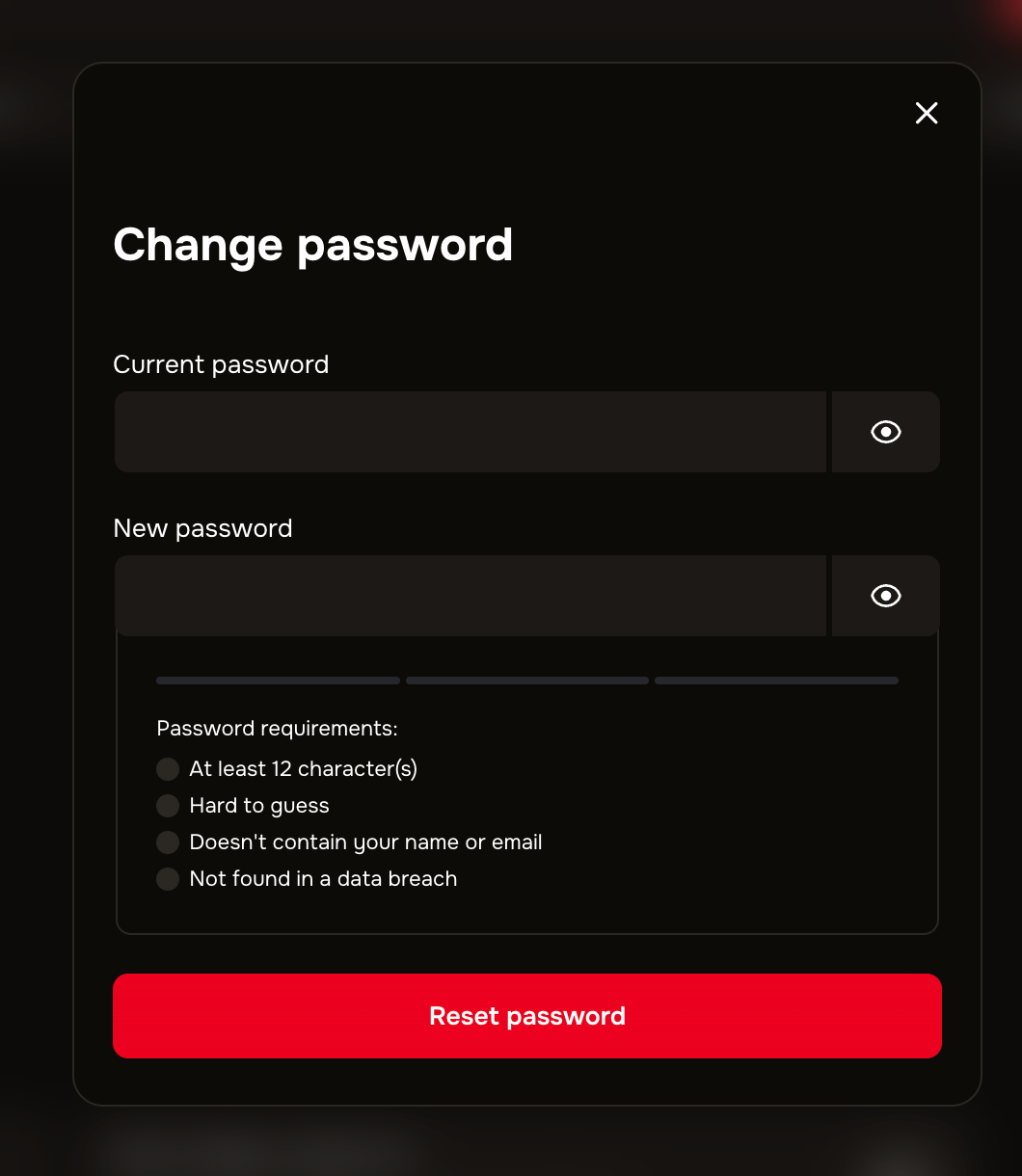
Figure 2: the Change password dialog, with the password requirements
1. Enter your current password. You can use the eye icon to check what you have typed.
2. Enter a new password that meets the requirements shown: at least 12 characters, hard to guess, not containing your name or email, and not found in a data breach.
3. Select Reset password to save the change.
The strongest passwords are long and used nowhere else. A password unique to Flush.io means that even if another site you use is ever compromised, your account here stays safe. A password manager is a great way to create and store one.
Good to know
You need your current password. Changing it requires entering your existing password first, which keeps the change secure.
Forgotten it entirely? If you cannot enter your current password, use the Forgot password option on the login screen instead; our separate guide covers that.
Signed up with Google? If you use Google to sign in, you log in through Google rather than a Flush.io password.
Pair it with 2FA. A strong password plus two-factor authentication is the best protection for your account.
Was this helpful?
Still need help? Ask the team