Enabling Two-Factor Authentication (2FA)
Adding an extra layer of security
Written By _flush_f0x_
Last updated About 2 hours ago
Two-factor authentication (2FA) adds a second step to signing in: a short code from an authenticator app on your phone. It is one of the best things you can do to protect your account, and you set it up on the Security tab in Settings.
Step 1: Open the 2FA setup
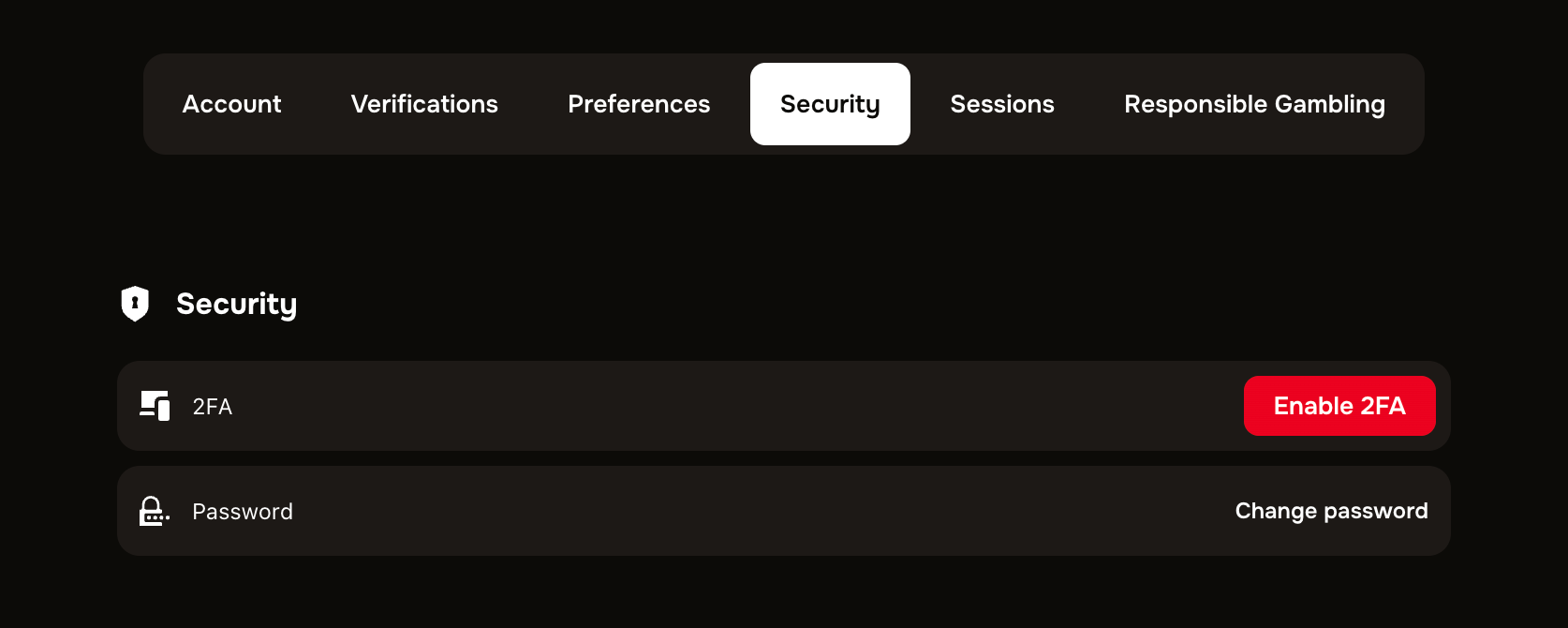
Figure 1: the Security tab, with the Enable 2FA option
1. Open your account menu, choose Settings, then the Security tab.
2. Next to 2FA, select Enable 2FA. The setup dialog opens.
Step 2: Link your authenticator app
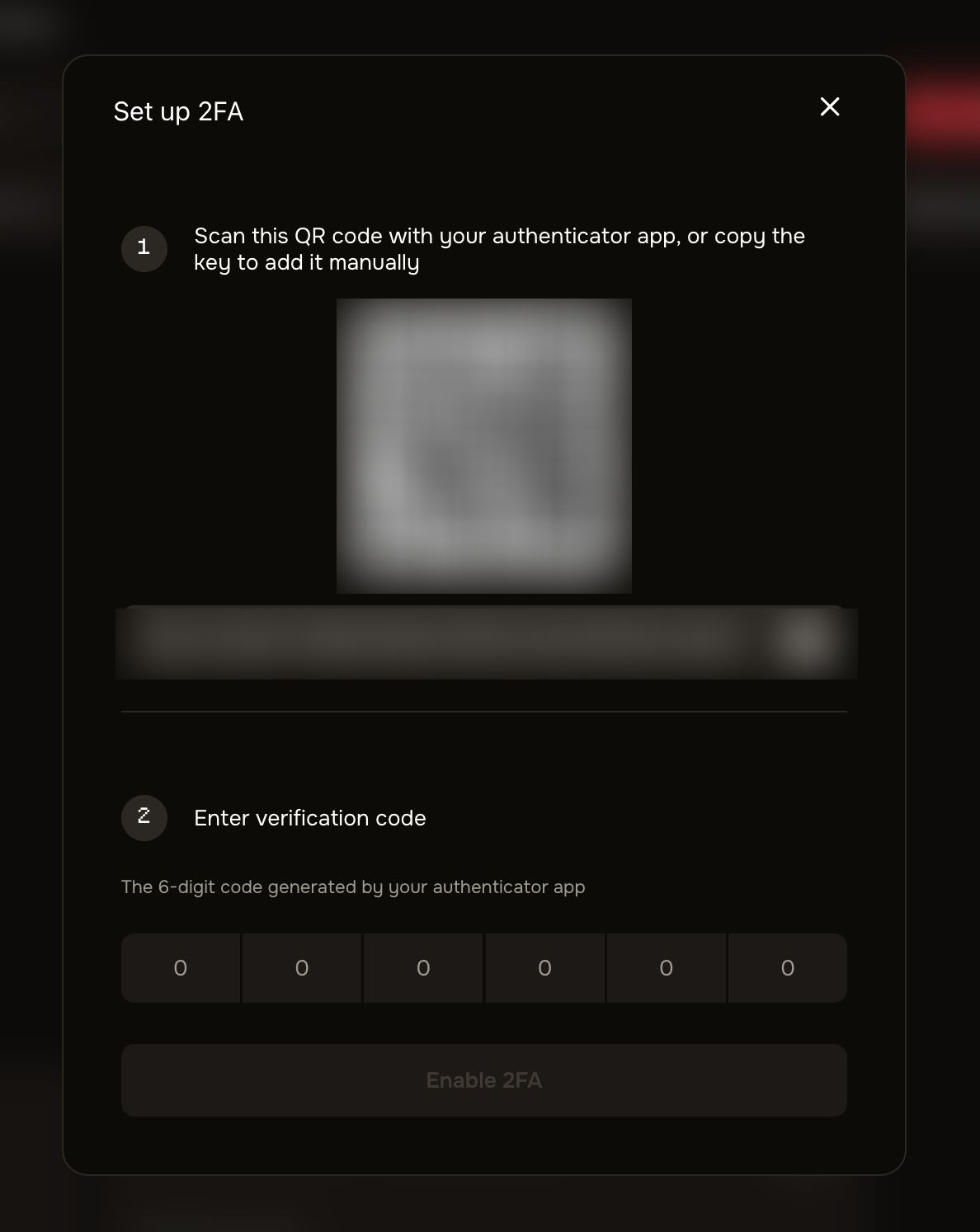
Figure 2: the Set up 2FA dialog, with the QR code and verification code step
1. In your authenticator app (such as any standard TOTP app), scan the QR code shown, or copy the secret key to add it manually.
2. Your app will start generating a 6-digit code that refreshes regularly.
3. Enter the current 6-digit code into the boxes, then select Enable 2FA.
You are able to now add 2FA to both login and making a withdrawal
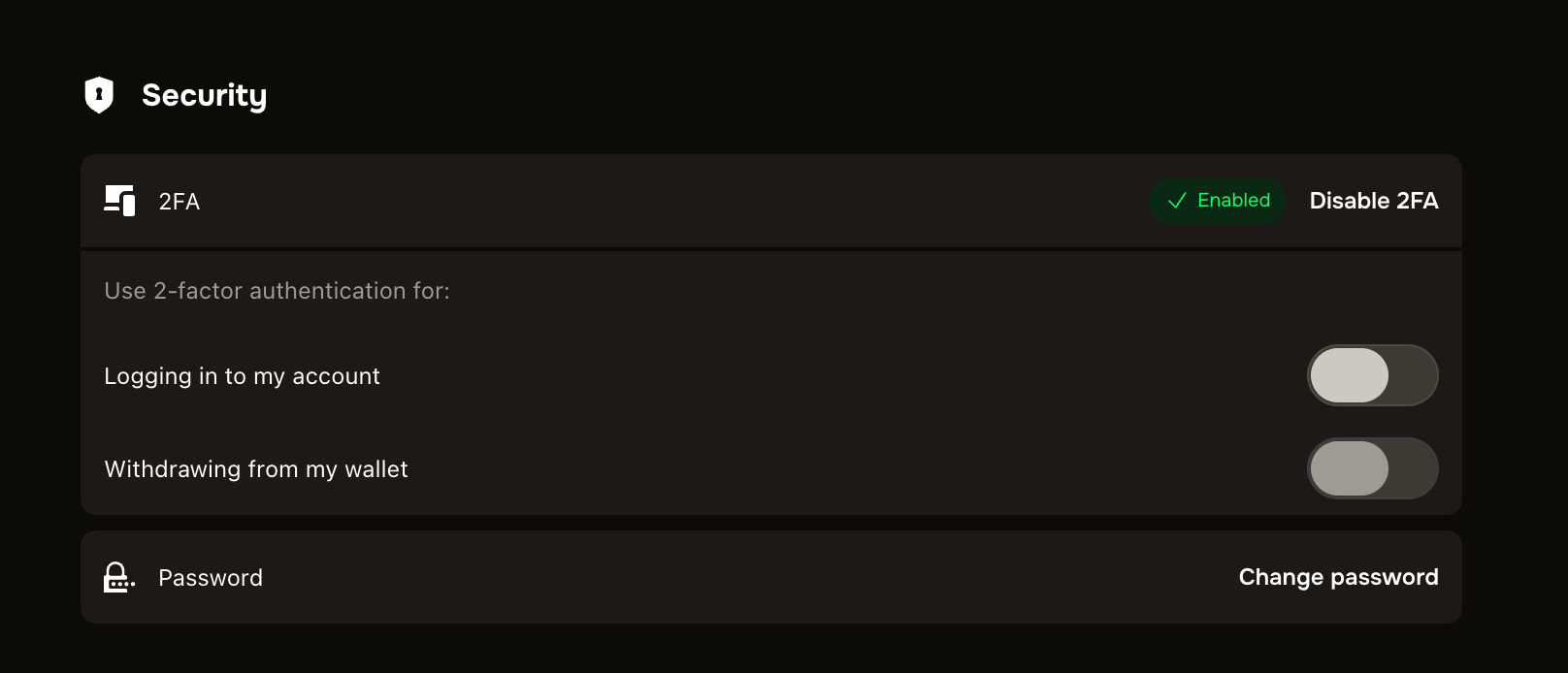
Figure 3: two options become available when 2FA is added
To remove any option once its been added, this will also require 2FA.
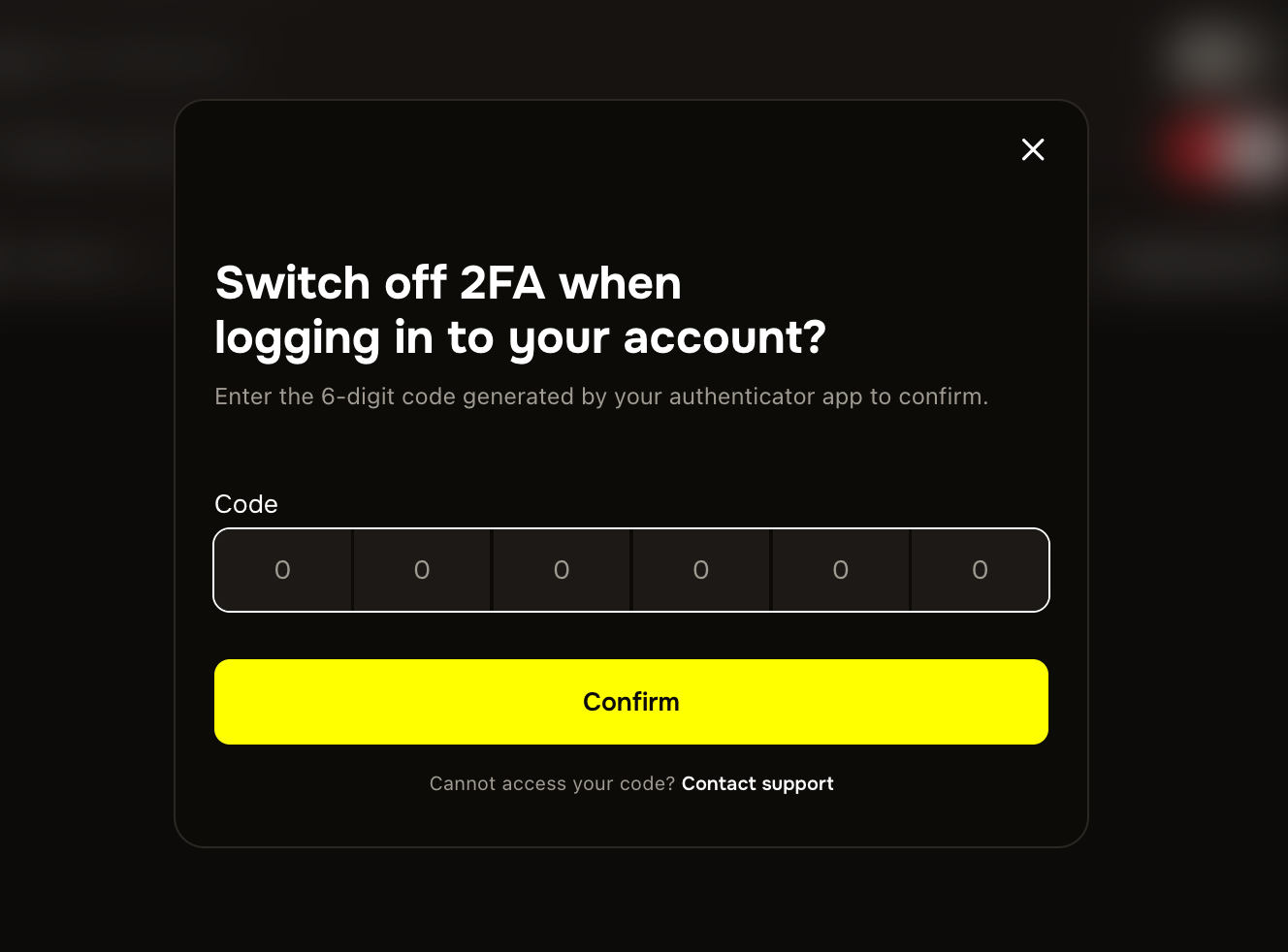
Figure 4: 2FA required to disable a trigger
Good to know
You will need your app to log in. Once 2FA is on, each login asks for the current code from your authenticator app.
It stops password-only access. Even if someone had your password, they could not sign in without your authenticator, which is the whole point.
Set it up on a device you keep. Use an authenticator on a phone you control and back up, so you do not lose access.
Lost your authenticator? Use your backup codes if you have them, or contact support to recover access securely.
Was this helpful?
Still need help? Ask the team