What is Two Factor Authentication (2FA)?
Written By _flush_f0x_
Last updated About 1 hour ago
Two-factor authentication, or 2FA, is a simple idea that makes your account dramatically harder to break into. Instead of relying on your password alone, it asks for a second thing at login: a short code that only you can get. Here is how it works, in pictures.
Two keys, not one
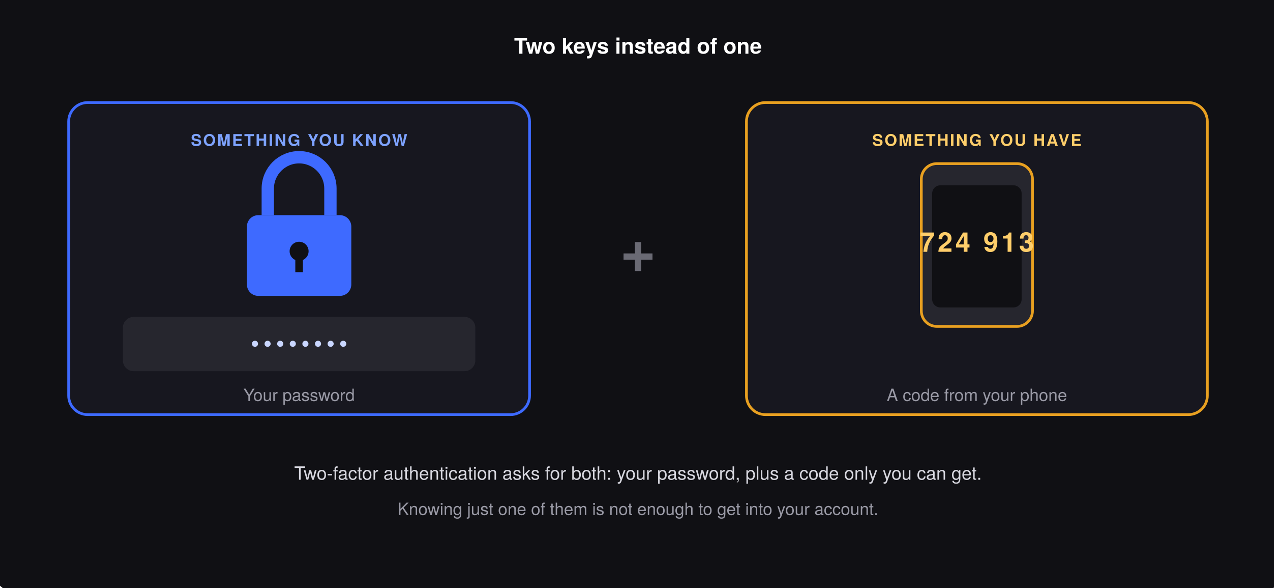
Figure 1: 2FA combines something you know with something you have
Your password is something you know. 2FA adds something you have: a code from an app on your phone. An attacker would need both at the same time, which is far harder than stealing a password on its own.
What it looks like when you log in
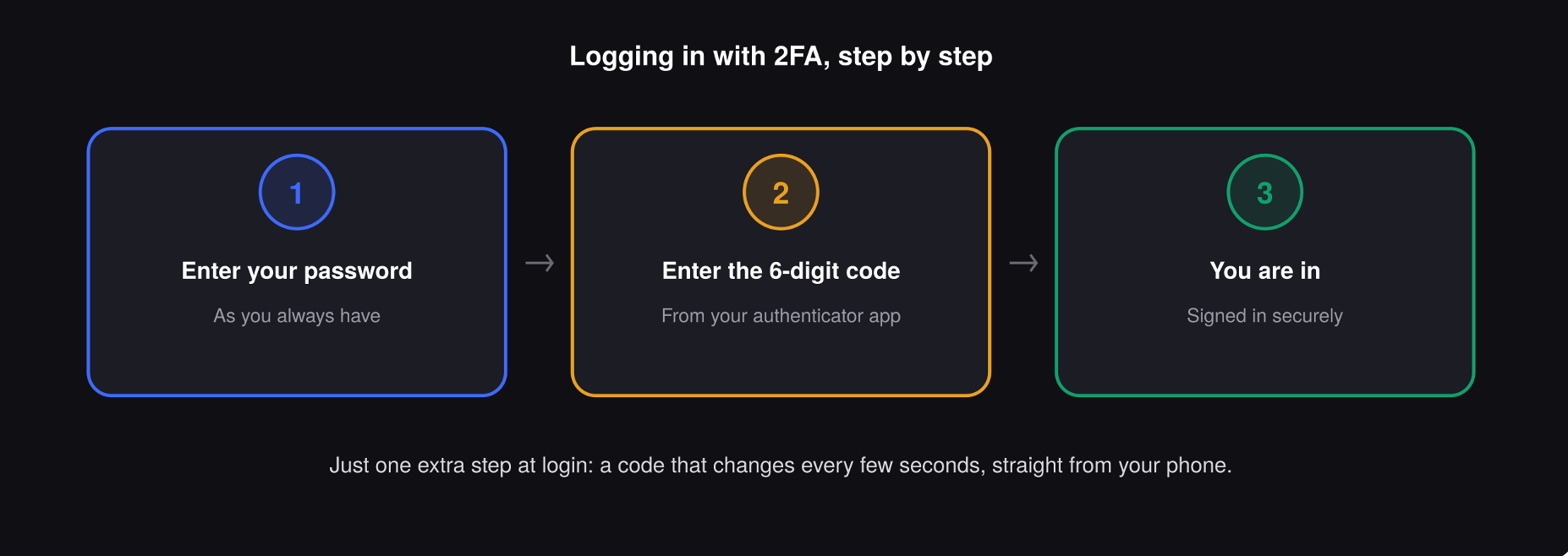
Figure 2: one quick extra step at sign-in
In day-to-day use, 2FA adds just one step. You enter your password as usual, then type the current 6-digit code from your authenticator app. The code refreshes every few seconds, so a new one is always ready, and you are straight in.
Why it keeps you safe
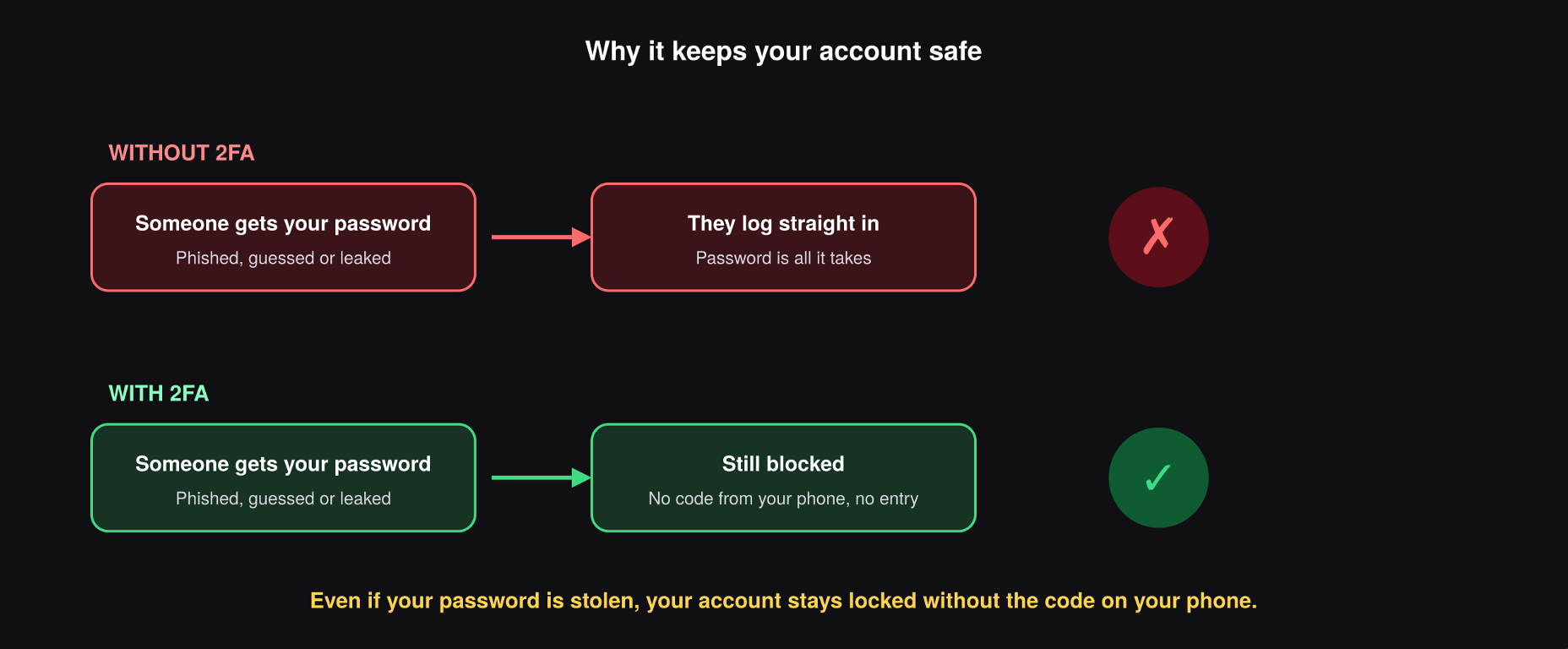
Figure 3: a stolen password alone is not enough
This is the whole point of 2FA. Passwords can be guessed, leaked, or phished, and if that is all that stands between someone and your account, a stolen password means a stolen account. With 2FA on, a stolen password gets them nowhere, because they still cannot produce the code on your phone.
Two minutes to set up, well worth it
Turning on 2FA is one of the single best things you can do to protect your account and funds. It takes a couple of minutes with any authenticator app, and from then on your account has a second lock that only you can open. Our guide on enabling 2FA walks through the steps.
Good to know
You just need an authenticator app. Any standard authenticator app on your phone works; it generates the codes offline, so no signal is needed.
Keep your backup codes safe. When you set up 2FA you may be given backup codes. Store them somewhere safe and offline in case you ever lose your phone.
Never share a code. Your 2FA codes are for you alone. Flush.io will never ask you to send one, and nor will anyone legitimate.
Ready to turn it on? See our guide on enabling 2FA to set it up, and our guide on removing it if you ever need to switch apps or devices.
Was this helpful?
Still need help? Ask the team